EZStock — Managing and Product Ordering Made Easy
Build Lists. Set Min/Max. Reorder in One Tap.
Stop counting by memory. EZStock keeps your parts organized, your quantities tracked, and your reorders fast.

If your parts ordering still runs on memory, sticky notes, or a spreadsheet someone updates once a month — there's a better way. EZStock is ARG's built-in inventory management tool that lets you build custom parts lists, set minimum and maximum quantities, and reorder everything you need in one tap. It works in the app and on TeamARG.com, and your lists are always waiting for you when you need them.
What Is EZStock
EZStock is a digital inventory management tool built into the ARG Industrial app and your account on TeamARG.com. It lets you build as many named parts lists as you need — one per truck, one per room, one per job site, one per department. Each list holds your products with minimum and maximum quantity thresholds. When it's time to reorder, you walk your inventory, enter your on-hand counts, and EZStock calculates exactly what you need to order. Add everything to your cart in one tap and you're done.
You can set up and manage your own lists, or if you're on ARG's VMI program, your ARG rep manages them for you.
Where to Find EZStock
EZStock is accessible from three places:
| Where | How to Get There |
|---|---|
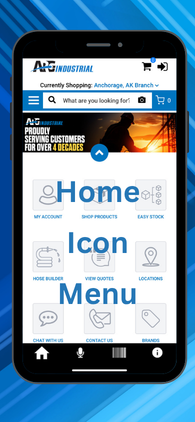
| Home Icon Menu | Tap the EZStock tile from the app's main screen — the fastest route |
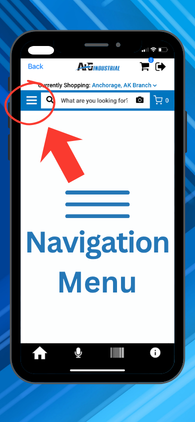
| Navigation Menu | Tap the three lines (☰) top-left in the app, then select EZStock under Purchasing Tools |
| TeamARG.com | Log in at TeamARG.com, go to My Account, then Easy Stock — your lists are the same across app and web |
Your EZStock Lists
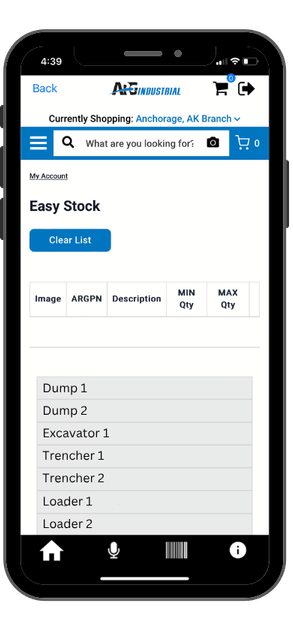
When you open EZStock, you land on your list directory — a table showing every EZStock list tied to your account. From here you can open any list, create a new one, or delete one you no longer need.
The list directory shows:
| Column | What It Shows |
|---|---|
| My Lists | The name you gave the list |
| Date Created | When the list was first created — sortable and filterable |
| No. Items in Group | How many products are in the list |
| Delete | Permanently removes the list and all its items |
Use the Show control to display 10, 25, 50, or 100 lists per page. Use Search Name to find a specific list fast. Tap any list name to open it.
Creating a List
You can create as many lists as you need. Name them anything — a truck number, a room, a department, a machine, a job site. There's no limit.
Adding Items to a List
Once you're inside a list, you have three ways to add products:
Method 1 — Add Items Manually
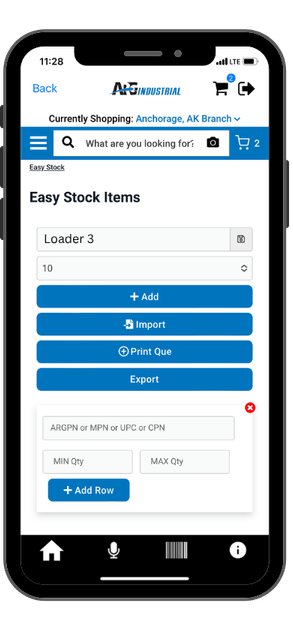
Use the entry row at the top of the list to add items one at a time. Enter the part number using any of the accepted formats, set your min and max quantities, and tap + Add Row. The item appears in the list below immediately.
| Field | What to Enter |
|---|---|
| ARGPN | ARG's internal part number |
| MPN | Manufacturer part number |
| UPC | Universal product code (barcode number) |
| CPN | Customer part number |
| MIN Qty | The minimum quantity you want to keep on hand |
| MAX Qty | The maximum quantity you want to stock |
Repeat for each item. Each new row is added to the list and saved to your account.
Method 2 — Import from Spreadsheet
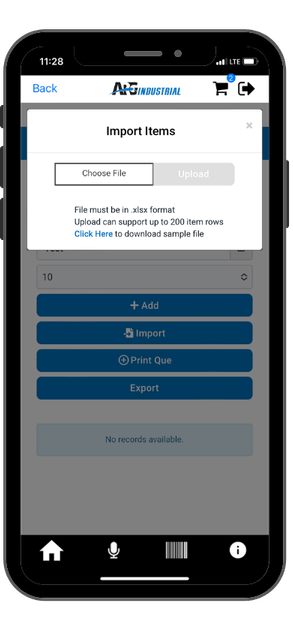
If you already have a parts list in a spreadsheet, you can import up to 200 items at once. Tap Import inside any list, then choose your file and upload.
Method 3 — Scan a Barcode
With a list open, tap the barcode icon in the bottom navigation bar and scan any product barcode. The item is looked up and added directly to your open list. Fast for walk-the-shelf setup or adding items on the spot in the field.
How Min/Max and Order Qty Work
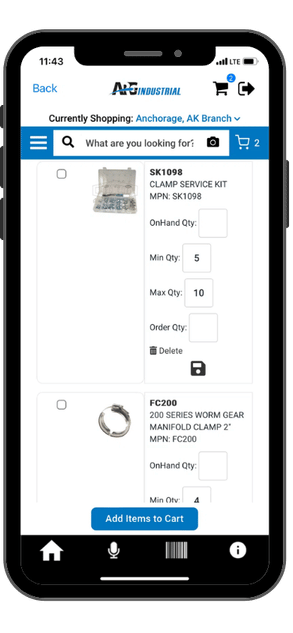
This is where EZStock saves real time. Each item in your list has four quantity fields:
| Field | What It Does |
|---|---|
| OnHand Qty | Enter your current count when you do an inventory walk |
| Min Qty | The minimum you want on hand before you need to reorder |
| Max Qty | The maximum you want to stock |
| Order Qty | Auto-calculated (Max minus OnHand) or manually overridden |
When you enter an OnHand count, the app automatically calculates Order Qty as the difference between your Max and what you have on hand. You don't have to do the math — just count and enter.
If you want to override the calculated amount — say you know you need more than usual, or you're placing a partial order — just type directly into the Order Qty field. Your entry takes priority.
Tap the Save icon on any row to save changes to that item's quantities.
Reordering from a List
Once your Order Qty fields are filled in — whether auto-calculated or manually entered — tap Add Items to Cart at the bottom of the list. Every item with a quantity in the Order Qty field gets added to your cart in one tap. From there, proceed to checkout the same way you would any other order.
Print Que — Labels, Scan Books, and Itemized Lists
EZStock's print tools let you create physical materials to support your inventory process — shelf labels, scan books for quick ordering, or itemized lists for reference. There are two ways to queue items for printing:
From the Print Que screen, tap Print and choose your output format:
Itemized List
A PDF document listing your selected items. Each entry shows the product image, ARG part number, description, and min/max quantities. Clean reference format for a clipboard or binder.
Labels
Prints product labels on Avery 94216 label stock — a heavy-duty label with a protective sheen built for bin and shelf use. Standard paper labels are not recommended for this application. You control what prints on each label:
| Label Option | Description |
|---|---|
| ARG Part Number | Print the ARGPN on the label |
| MPN | Print the manufacturer part number |
| CPN | Print your customer part number |
| QR Code | Always included — scan to pull up the product |
| Show/Hide Min & Max | Option to include or exclude min/max quantities on the label |

Scan Book
A PDF with all selected items printed 6-up per page. Each entry shows the product barcode, part number, product image, and description. Hand these out to your team so they can scan items directly to order without hunting for part numbers. Great for regular stocking rounds, seasonal ordering, or any situation where speed at the shelf matters.
Export
Tap Export from inside any list to download your list as an .xlsx spreadsheet. The file uses the same three-column format as the import template — part number, min qty, max qty — making it easy to share with your team, back up your lists, or hand off to your ARG rep for VMI setup.

Who It's Built For
EZStock works for any operation that goes through the same products on a regular basis. The list structure is flexible enough to match how you already work — just name each list after whatever you're tracking.
| Operation Type | How They Use EZStock |
|---|---|
| Fleet & Truck Maintenance | One list per vehicle or unit number. Walk the truck, count what's low, add to cart. Every truck has its own par levels. |
| Mills & Mines | One list per department, machine line, or work area. Maintenance teams reorder by zone without cross-referencing other departments. |
| Large Factory Divisions | Each division or cost center manages its own list independently. No more consolidated orders that slow everyone down. |
| Auto Body & Truck Repair | Lists organized by shop area or job type — frame, paint, hydraulic. Technicians reorder what they used without a purchasing bottleneck. |
| OEMs | Production line BOM-style lists with tight min/max controls. Scan barcodes on the line to trigger reorders before you run out. |
| Facilities & MRO | One list per building, floor, or equipment room. Maintenance managers do their rounds with the app and reorder in one tap before leaving the area. |
VMI Customers — Let ARG Manage Your Lists
If managing your own lists isn't something you want to take on, ARG can do it for you. Through ARG's VMI (Vendor Managed Inventory) program, your ARG rep builds and maintains your EZStock lists, sets your min/max levels based on your usage history, and keeps your inventory dialed in — so you're never over-stocked or scrambling for parts.
VMI customers use the same EZStock interface to do their inventory counts and place orders. The difference is that the list setup and maintenance happen on ARG's end.