

ARG Mobile App — Getting Started
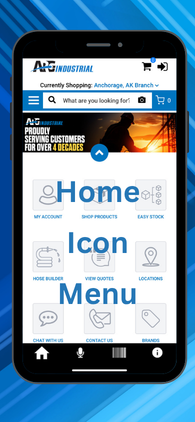
Home Icon Menu
One tool to keep your business running smoothly. Services and tools right in the palm of your hand.



If you're still calling the counter to check stock, emailing in reorders, or waiting to get back to a desk to approve a quote — there's a faster way. The ARG Industrial app puts your account, your inventory, and your order history in your pocket, 24 hours a day.
This guide walks through every feature so you can get to work with it fast.
How to Download and Log In
The app is free for all ARG account holders. Your existingTeamARG.comlogin works — no separate registration needed.
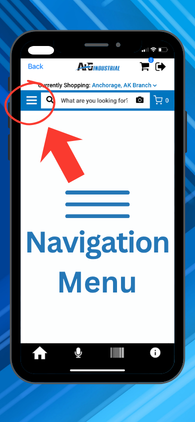
The app has two main navigation areas — the Home Icon Menu with quick-access tiles, and the Navigation Menu (tap the three lines top-left) for the full catalog, brands, and resources. This guide covers everything on the Home Icon Menu. For a full breakdown of the Navigation Menu, visit the Navigation Menu guide.
Two of the app's most powerful tools — EZStock and the Hose Builder — have their own dedicated guides in this series. EZStock makes it effortless to manage your parts inventory and reorder in seconds. The Hose Builder lets you spec and order a complete custom hydraulic hose assembly from your phone, without a single phone call. If you're ready to get the most out of either tool, head straight to their guides using the series navigation above.
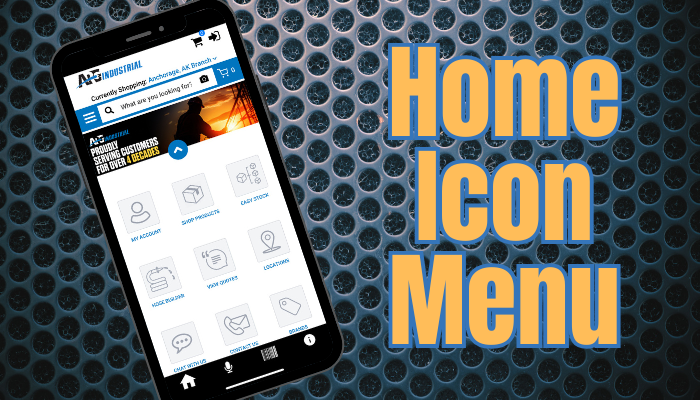
When you open the app, the Home Icon Menu gives you one-tap access to the 9 most-used features. Use the In This Guide list above to jump to any feature.
 My Account
My Account is your personal dashboard inside the app. It gives you full visibility into everything tied to your ARG account — open orders, order history, saved favorites, carts, addresses, and your profile. You can also customize the dashboard layout to show what matters most to you.
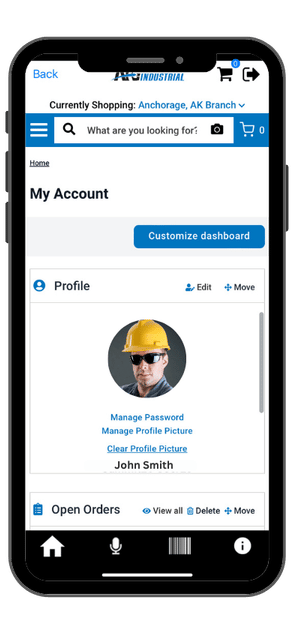
Customize Dashboard
Tap the Customize Dashboard button to rearrange how your My Account sections appear. Move the sections you use most to the top so you get to them faster every time.
Profile
Your profile section shows your name, email, phone, address, and last login date. From here you can:
| Action | What It Does |
|---|---|
| Edit | Update your contact information and profile details |
| Manage Password | Change your account password |
| Manage Profile Picture | Upload a photo to your account |
| Clear Profile Picture | Remove your current profile photo |
| Move | Reposition this section on your dashboard |
Open Orders
See all orders that are currently in progress. Each order shows:
| Field | Description |
|---|---|
| Order # | Your ARG order number |
| PO # | Your purchase order number |
| Order Date | When the order was placed |
| Amount | Order total |
| Order Status | Current status of the order |
Tap View All to see the full open orders list. Use Delete or Move to manage this section on your dashboard.
Order History
Your complete order history is stored here. Each record shows:
| Field | Description |
|---|---|
| Order Number | Your ARG order reference |
| Invoice Number | The invoice associated with the order |
| Order Date | When the order was placed |
| Invoice Status | Whether the invoice is open, paid, or pending |
| Total Amount | Order total |
Tap View All to search and filter your full history. Use Delete or Move to manage this section.
Favorites
Save products you order regularly into named Favorites lists — a fast way to find and reorder the same items without searching each time. Each favorite list shows:
| Field | Description |
|---|---|
| Favorite Name | The name you gave this favorites list |
| Date Created | When the list was created |
| No. of Items | How many products are saved in the list |
Tap View All to see and manage all your favorites lists. Use Delete or Move to manage this section.
Saved Carts
Save a cart in progress and come back to it later — useful when you're building a large order across multiple sessions or need someone else to review it before submitting. Each saved cart shows:
| Field | Description |
|---|---|
| Cart Name | The name assigned to the saved cart |
| Date Created | When the cart was saved |
| No. of Items | How many line items are in the cart |
Tap View All to manage all saved carts. Use Delete or Move to manage this section.
Addresses
Your billing and shipping addresses on file with ARG are listed here. This section is read-only in the app — contact your ARG branch to update account addresses. Use Delete or Move to manage how this section displays on your dashboard.
 Shop Products
Shop Products gives you access to ARG's full catalog — over 60,000 parts and products — directly from your phone. Tap a category to browse, or use the search bar to find a specific part number or keyword. Product pages show specs, availability by branch, and your account pricing.
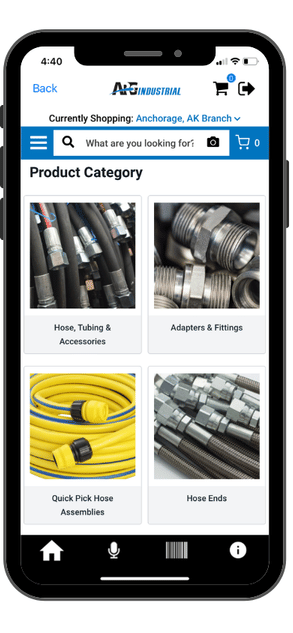
Product Categories
Tap any category to browse. Some categories contain sub-categories — tap through to find the products you need. Once you reach a product list, you can filter results to narrow down exactly what you're looking for.
- Hose, Tubing & Accessories
- Adapters & Fittings
- Quick Pick Hose Assemblies
- Hose Ends
- Rigging & Lifting Products
- Expansion Joints & Accessories
- Metal Flex Hoses
- Pumps
- Fuel Transfer & Lubrication
- Valves & Strainers
- Tools & Shop Supplies
- Gaskets, Seals & Sheet Material
- Power Transmission
- Adhesives, Coatings, Sealants, Lubricants & Tapes
- Clamps
- Hose Reels
- Pressure Washer & Washdown Equipment
- Gauges & Indicators
- Hydraulic Equipment & Accessories
- Fleet Maintenance & Heavy Machinery
- Conveyor Belt & Accessories
- Marine Accessories
- Crimpers, Equipment & Storage Solutions
- Industries
- Clearance
- Data Center Cooling
- Agriculture Pre Season Buy
Filtering Product Results
Once you're on a product list page, use the filter options to narrow down results fast.
| Filter | What It Does |
|---|---|
| Show Availability | Toggle between your branch only or all ARG branches |
| Brands | Filter results by brand name |
| Manufacturer | Filter by the product manufacturer |
| Category | Narrow to a specific sub-category |
| Product Type | Filter by product type within a category |
| Nominal Size | Filter by standard nominal size |
| Dash Size | Filter by dash size designation |
| Outside Diameter | Filter by outside diameter measurement |
| Length | Filter by product length |
| Material | Filter by material type (brass, stainless, rubber, etc.) |
| Color | Filter by product color where applicable |
Sort Options
| Sort Option | What It Does |
|---|---|
| Relevance | Default — shows the most relevant results for your search |
| Best Seller | Products ordered most frequently by ARG customers |
| Brand Name | Alphabetical by brand name |
| Brand Description | Alphabetical by brand description |
| MPN Name | Alphabetical by manufacturer part number name |
| MPN Description | Alphabetical by manufacturer part number description |
| ARG Part Number | Sorted by ARG's internal part number |
| ARG Part Description | Alphabetical by ARG part description |
Page Navigation
When a product search returns more results than fit on a single screen, the results are split across multiple pages. A page navigation bar appears at the bottom showing the total number of pages — tap the forward and back arrows or a specific page number to navigate.
Product Detail Page
Tap any product to open its detail page. Here's what you'll see:
| Field | Description |
|---|---|
| Product Image | Photo of the product |
| Compare Select | Check this box to add the product to a side-by-side comparison — select two products then tap Compare Selected |
| Product Name | Full product name |
| Description | Product specifications and details |
| Manufacturer Name | The manufacturer of the product |
| Brand | The brand name |
| ARG Part Number | ARG's internal part number for ordering reference |
| MPN | Manufacturer Part Number |
| Available for Pickup | Shows in-stock availability at your currently selected branch. Tap Check availability in other branches to see stock at all ARG locations |
| Available for Shipping | Shows shipping availability. Tap Check availability in other branches to view options from other locations |
| Price | Your account-specific price per unit of measure |
| Quantity | Enter the quantity you need |
| Add to Cart | Tap to add the product and quantity to your cart for checkout |
| Add to Favorites | Tap to save this product to a Favorites list for fast reordering later |
Compare Selected
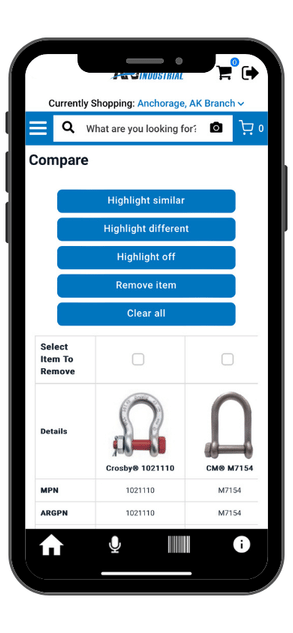
Not sure which product to order? The Compare Selected feature lets you place two products side by side to evaluate specs before you commit.
Highlight Similar — highlights matching specs
Highlight Different — highlights differing specs
Highlight Off — removes all highlighting
Remove Item — removes one product
Clear All — clears the entire comparison
Select Item to Remove — check the box under a product to remove it
 Easy Stock — Parts Lists and Reorders
Easy Stock is ARG's built-in inventory management tool. Build custom parts lists with minimum and maximum quantities and reorder everything in one tap — accessible right from the Home Icon Menu. Set it up once and reordering takes seconds.
 Hose Builder — Spec Custom Assemblies
The Hose Builder is ARG's interactive hose configuration tool — available in the app and onTeamARG.com.If you have a hose that's down, spec a complete custom assembly, get pricing, and add it to your cart without a phone call. The tool walks you through every step and only shows compatible components.
 View Quotes — Open Orders & Quotes
Tap View Quotes from the Home Icon Menu to see all your open orders and open quotes in one place. Review line items, check order status, and reorder directly from your history — without calling the counter.
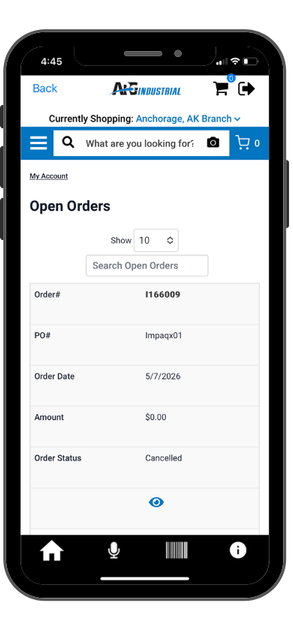
Open Orders & Quotes List
The main View Quotes screen displays all open orders and open quotes. Use the Search Open Orders field to find a specific order fast. Use the Show control to set how many results display per page. Each record shows:
| Field | Description |
|---|---|
| Show | Controls how many results display per page |
| Order Number | Your ARG order reference number |
| PO Number | Your purchase order number |
| Order Date | The date the order was placed |
| Amount | Total order amount |
| Order Status | Current status of the order |
| ⓘ Detail Link | Tap the eye/info icon to open the full order detail view |
Order Detail View
Tap the ⓘ icon on any order to open the full detail view:
| Field | Description |
|---|---|
| Order Status | Current status of the order |
| ERP Order Number | The internal order number from ARG's system |
| Order Date | When the order was placed |
| PO Number | Your purchase order number |
| Billing Address | The billing address on the order |
| Shipping Address | The delivery address for the order |
| Shipping Instructions | Any special delivery or handling instructions |
Line Items
| Field | Description |
|---|---|
| Photo | Product image |
| Item Description | Full product name and description |
| Quantity Ordered | How many units were ordered |
| Quantity Shipped | How many units have shipped so far |
| Unit Price | Your account price per unit |
| Total | Line item total (quantity x unit price) |
 Locations — Find Your Nearest Branch
Tap Locations from the Home Icon Menu to see all ARG branch locations across Alaska and the Pacific Northwest. The page opens with a live map, then gives you multiple ways to find the right branch for you.
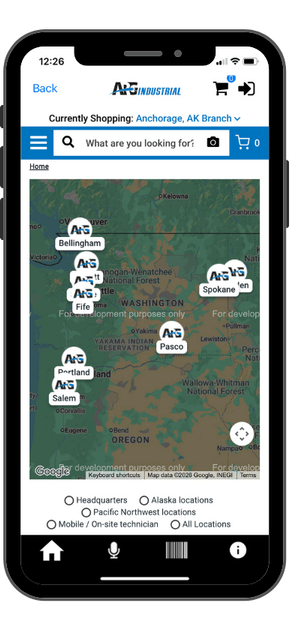
Map View
The page opens with an interactive map of Alaska and the Pacific Northwest showing all branch locations as icons.
Filter by Area
- All Locations
- Headquarters
- Alaska Locations
- Pacific Northwest Locations
- Mobile On-Site Technician
Find a Location by Postal Code
Below the filter options is a Find a Location search field. Type in your postal code and the app will identify the closest ARG branch to you.
Branch List
Scroll further to see branches organized by area — Alaska first, then Pacific Northwest. Tap any branch to expand its full details:
| Detail | Description |
|---|---|
| Address | Full street address for the branch |
| Phone Number | Direct branch phone number |
| Branch Hours | Current operating hours |
| Line Card | View the ARG line card for that branch |
| Email This Branch | Opens an email directly to the branch |
| Visit This Branch | Link to the branch's dedicated page on TeamARG.com |
| Map & Driving Directions | Opens turn-by-turn directions in your phone's map app |
 Chat With Us
Chat With Us connects you directly to ARG's team through the app. Got a question about a part, a lead time, or whether something is in stock at your branch? Start a chat and get a real answer from the people who know the product.

 Contact Us
Contact Us gives you direct access to ARG's branch phone numbers, email addresses, and contact forms — all in one place. Whether you need to reach your local counter, a specific rep, or ARG's main line, it's all here without having to hunt through a website.

 Brands
Tap Brands from the Home Icon Menu to browse ARG's full lineup of manufacturers. The Brands page gives you three ways to find what you need fast.

How to Find a Brand
| Method | How It Works |
|---|---|
| Search by Brand | Type a brand name in the search field and the list filters in real time |
| Alpha Selector | Tap any letter from the A–Z selector bar to jump directly to brands starting with that letter |
| Browse the List | Scroll through the full alphabetical brand list below the search bar and alpha selector |
Tap any brand name to open its product list — showing all products ARG carries from that manufacturer, with your account pricing and availability.
Frequently Asked Questions
No. Your existing TeamARG.com login works directly in the app. If you don't have an account, register at TeamARG.com/register.
Yes — the ARG Industrial app is free to download and use for all ARG account holders on both iPhone and Android.
Yes. Once you log in with your ARG account credentials, the app reflects your customer-specific pricing on all products.
Stock levels in the app update in real time across all ARG branch locations. What you see reflects actual availability at that moment.
Yes. The Hose Builder is available both in the app and directly on TeamARG.com.
Your local ARG branch is always available to help. Find your nearest location at TeamARG.com/locations.